With our digital solution, we make it quick and easy to make changes to anything regarding the menu and the dishes you have. When making changes in the CMS and clicking on publish, the menus should refresh after 5 - 10 minutes. In the event that the menus did not update, here are some steps you can take to ensure that all the menus get the latest updates.
Wi-Fi on the menu:
In order for the menus to get the update they must be connected to Wi-Fi. On the actual menu itself, take a look and see if the Wi-Fi symbol shows up on the top of it. Most of the time it is on the right side of the screen next to the Battery symbol (image example below). On different models it can be on the left side next to the phrase "iPad" (NOTE TO SELF ADD Wi-Fi Image). The Wi-Fi symbol is comprised of three bars, the less bars there are, the weaker your signal is.
If the Wi-Fi symbols is on the menu and it has not received the update, try moving the menu closer to the source of the Wi-Fi (the router itself) in order to boost the signal. The closer it is to the router the faster it can get the update from the server.
If it still has not gotten the update please try to reboot the menu by pressing and holding both lock and home buttons for 10 seconds until you see the Apple Logo. This forces the menu to refresh everything including the connection to our server.
No Wi-Fi Symbol:
In the event that there is no Wi-Fi Symbol anywhere on the top of the menu, you would need to exit out of the menu using your administrative code. Once out of the menu, swiping from right to left should bring the next page, on that page should be a folder and in that folder is the settings of the menu itself. When you click on settings you should be greeted with the settings page split in to two parts, the left part and the right part. By default after opening the settings app, on the left General should be selected, if not please select General.
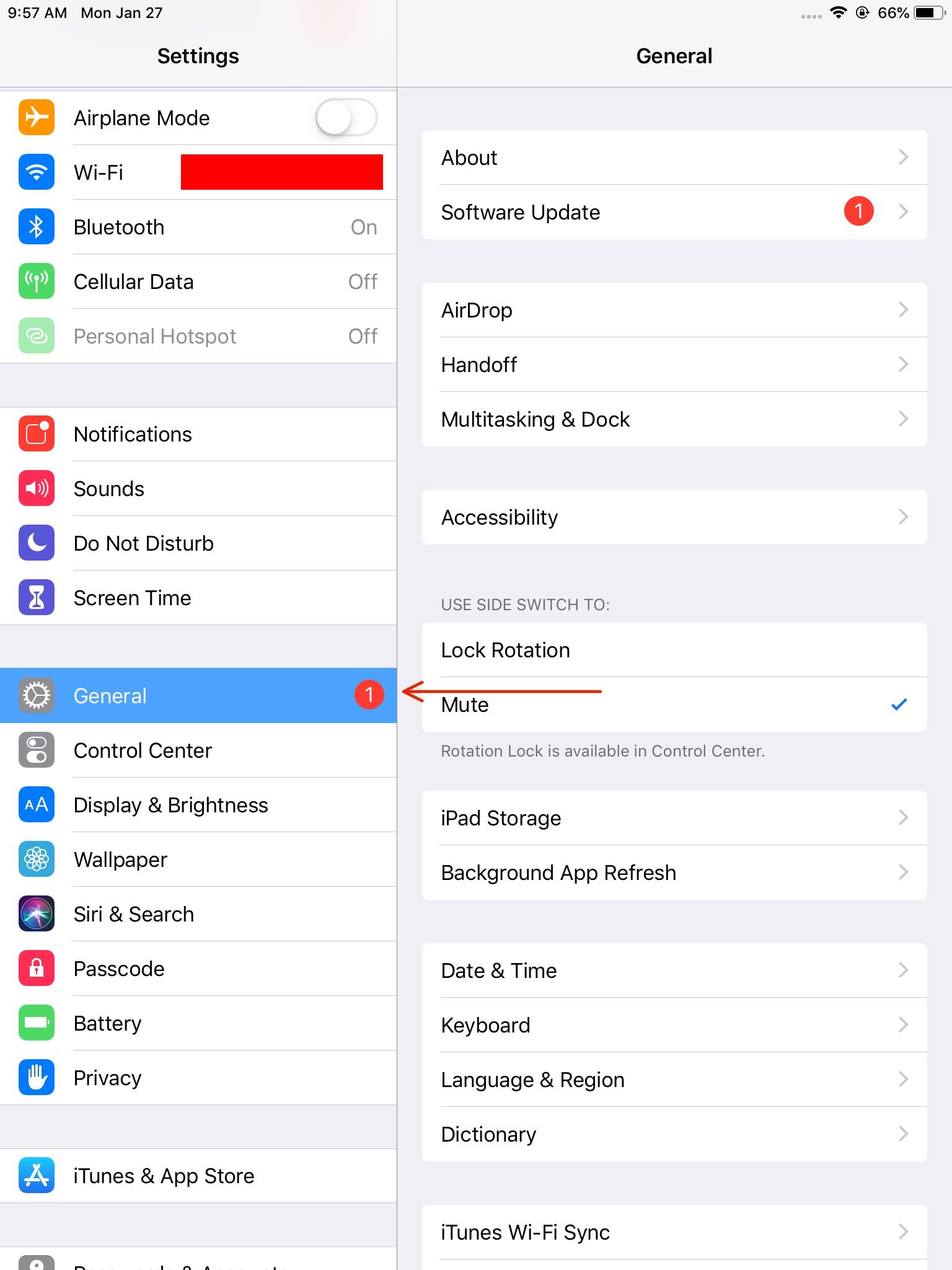
In General, on the right side, please scroll down to the end until you see "Reset" and select it.
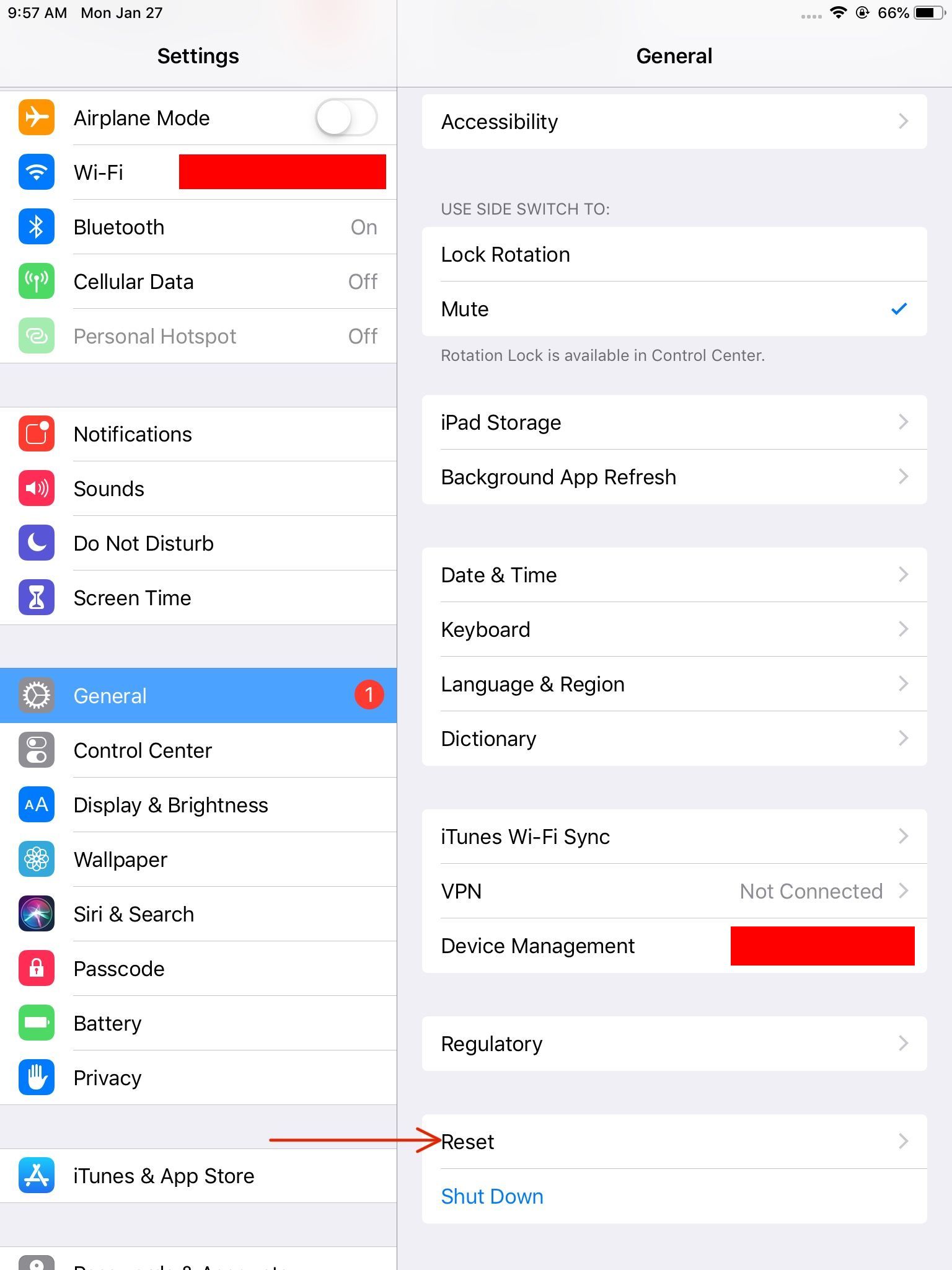
In Reset, please click on "Reset Network Settings"
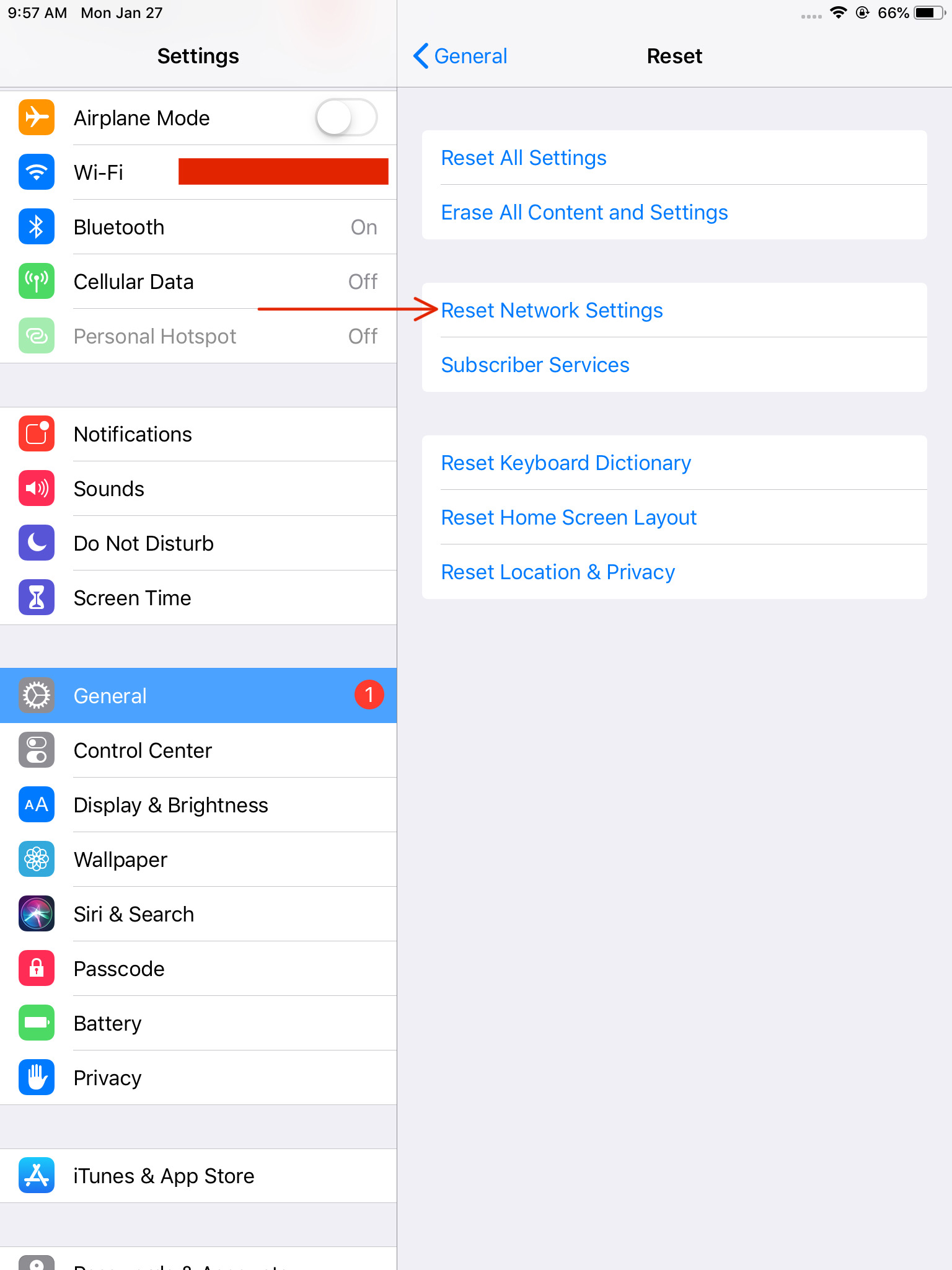
Finally, click on the red Reset Button.

Once the red reset button has been clicked, the iPad should be restarting and showing the Apple Logo. After the Apple logo, the menu should load up the home screen and it should be connected to Wi-Fi now. Clicking on the home button brings unlocks the menu and brings you to the home screen. On the home screen, click on the eMenu application and the eMenu should start loading. Confirm that the menu is up to date with all the changes that were made and if they are, this menu is good to go out on the floor again.
If Reset Network Settings Does Not Work:
In the event that after Resetting Network Settings does not bring the Menus back online, going back to the settings page should show you the Wi-Fi button on the left side. When clicked, it should bring up all the available Wi-Fi networks in the area. Connect the menu to the appropriate network for the menus and make sure that the Wi-Fi symbol is showing on the top of the screen. Once you see the Wi-Fi symbol on the top of the screen, click on the home button until you get to the main screen where the eMenu app is and click on it. Open the app and the menu will start loading up. Confirm all the changes that were made and you can put that menu back out on the floor.
If Changes Are Still Not Live On The Menu:
If changes are still not live on the menu itself, please reach out to your client success manager as soon as possible in order for them to determine what the problem is and possibly schedule a time to stop by and take a look.
When all is said and done we always want all the menus online in order for all the changes to be live on the menu. If you are still having trouble, please reach out to your client success manager and have them take a look and make sure that all is working properly.
Was this article helpful?
That’s Great!
Thank you for your feedback
Sorry! We couldn't be helpful
Thank you for your feedback
Feedback sent
We appreciate your effort and will try to fix the article